
|
Home
| pfodApps/pfodDevices
| WebStringTemplates
| Java/J2EE
| Unix
| Torches
| Superannuation
| CRPS Treatment
|
| About
Us
|
|
|
pfodWeb
|
by Matthew Ford 12th August 2026 (originally posted
27th August 2025)
© Forward Computing and Control Pty. Ltd.
NSW Australia
All rights reserved.
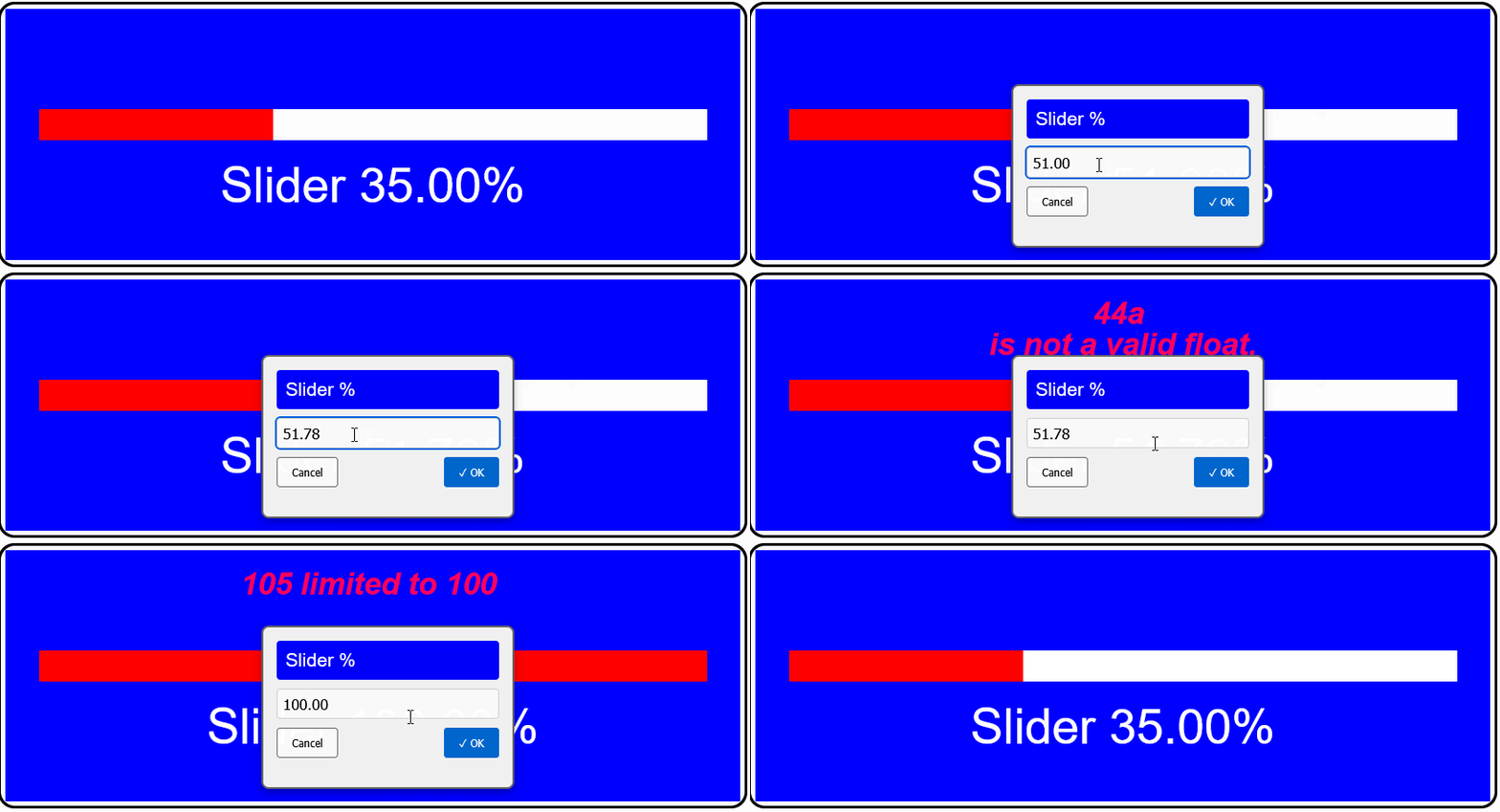
This is the fourth tutorial on using pfodWeb Dwg Designer to
create interactive and responsive GUI for pfodApp
and the free, open source, pfodWeb.
This
tutorial will cover touchActionInputs which when triggered
popup a single line text input dialog to allow the user to send
text/numberic data to the pfodDevice (microprocessor)
Your micro
serves all the necessary code to run the web page controls. No third
party js libraries or internet access is needed.
pfodWeb.html is a free web based replacement for the paid Android app, pfodApp. pfodWeb.html runs in any browser and connects to your Arduino board via either Serial, Classic Bluetooth, BLE, TCP/IP socket or HTTP. Using Serial you can connect to any Arduino board and display the interactive controls it serves. pfodWeb.html runs competely off-line. No internet connection is needed. See pfodWeb Quick Start for installation setup.
The interactive controls are
completely defined by the code (generated by pfodWeb Designer) in
your Arduino. Very compact pfod
messages are used to send the controls and receive the user's
commands.
If your Arduino board supports HTTP and has a file
system with 550Kb free, then
you can load the pfodWeb.html files onto your microprocessor and
serve them directly from there.
pfodWeb Dwg Designer is just another connection option in pfodWeb.html. It provides a free web based replacement for the free Android apps, pfodDesignerV3 and pfodGUIdesigner. PfodWeb's Designer allows you to design interactive and responsive user interfaces for your microprocessor. The Designer generates Arduino code that works with all pfodDevices that connect via Serial, Bluetooth, BLE, SMS and WiFi, not just those that have WiFi support. Individual pfodWeb Designer dwg controls are stored as JSON files which you can duplicate, modify and reuse in other designs. Each reused control can be individually scaled and positioned in the final design.
Introductory
Tutorial – Covers
using pfodWeb to create a simple press button example that
illustrates touchZone and touchAction.
Reuse
Controls with insertDwg – Covers copying dwgs
and using insertDwg to insert multiple copies into the main
drawing.
touchActions
for Instant Feedback – Covers
using touchActions to give instant feedback in a slider
control.
TouchActionInput for text/number
entry – This one. Covers using touchActionInput to
input text / numbers to your micro
Building
Reusable Controls – Covers
building a re-usable popup help button component.
pfodWeb is free and open source. If you want to support this work, purchase the Android pfodApp which will work with the same code developed here.
See the Introductory
Tutorial for the parts list and the Quick
Start instructions.
The tutorial uses the SafeString
library to safely copy text and validate number inputs. Install the
SafeString library using the Arduino Library manager.
Arduino
Mega or
higher recommended for these tutorials.
The complete source code
for pfodWeb.html is available in pfodWeb_src.zip
and on Github.
touchActionInput is
linked to a touchZone. When the touchZone is triggered, the
single line Dialog box opens. The title of the dialog box and the
initial text displayed is configurable from your pfodDevice (your
microprocessor).
From the dialog box you can either Cancel or OK.
If you Cancel the dialog box nothing is sent to the pfodDevice and no
touchActions are triggered.
If you OK the dialog box, then the
input is sent to the pfodDevice and any touchActions for that
touchZone are displayed until there is a response from the
pfodDevice.
The minimal touchActionInput opens with a blank input. If you link
the touchActionInput to a label, the current contents of that label
are used as the initial value for the dialog input. This lets you
edit an existing label.
As was covered in previous tutorials,
labels (and values) can have prefix and suffix text which will also
be displayed in the dialog box. To edit just a numeric value, add
another label that holds just the current numeric value and then hide
that label. The touchActionInput can still access a hidden label as
its default input and the pfodDevice can update both the hidden label
and the displayed label with the updated value.
This tutorial extends the BasicSlider example of the previous
tutorial to
add a touchActionInput that accesses a hidden label which lets you
type in the required slider % and on OK updates the slider, the main
label and the hidden label holding the number.
Open pfodWeb Dwg
Designer and load the BasicSlider.pfodDwg_json
from the final design of the previous tutorial and change its name
using Edit Drawing Properties to SliderInput
Edit the Drawing Item Value “Slider “ and change it to a Label with 2 decimal places. Value items only accept integers and here the slider percent setting will allow decimal places. The Label dwg item has an option to include a value, but in the label's case the formatting is done in the microprocessor and the whole label built there before sending for display.
In the previous tutorial, the slider position was an integer set by the touch X position. Here the slider_percent will be a float that can be set by either to touch X position or via the touchActionInput dialog box.
Also add a touchZone around the Label with a Touch filter (default). Move it up above the popZero and position it to cover the label. Here the cmd_.. for the touchZone has been changed to cmd_sliderValue, which will appear in the code in the name for the method name that handles this touchZone.
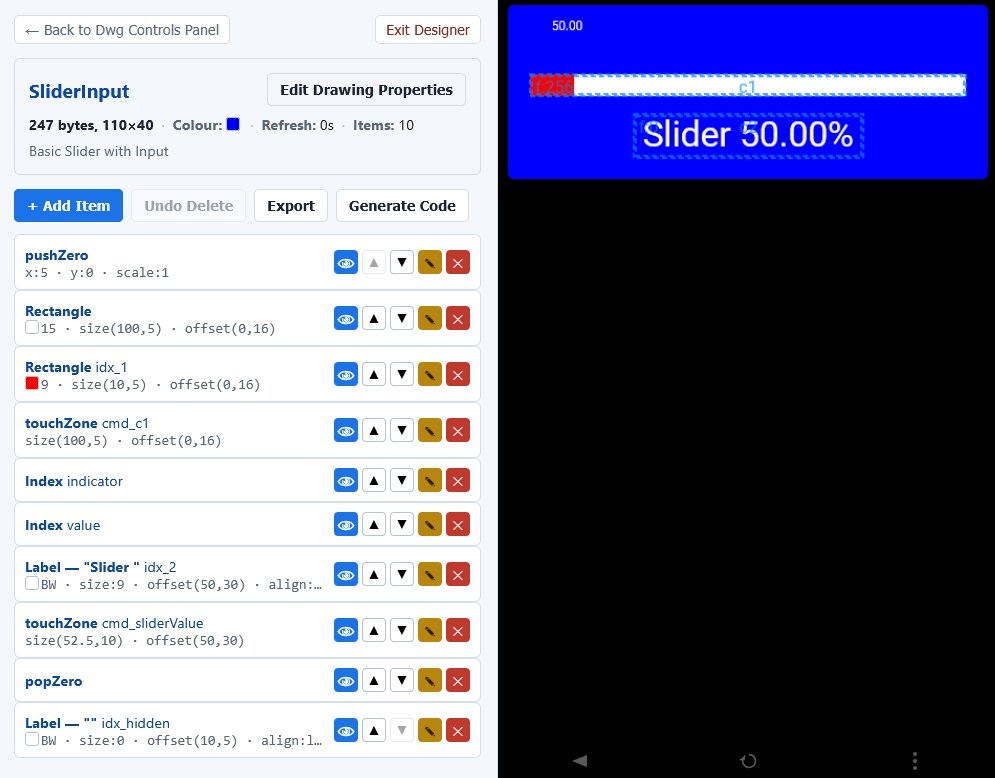
Add another Label, indexed, with 2 decimal places and some
initial Value, but with no Text or Units. The color and position is
not important as this label will be hidden in a later step.
Change
the idx variable name to idx_hidden as it will be the hidden
label.
Edit the touchAction to add a touchActionInput. There can only be one touchActionInput per touchZone.
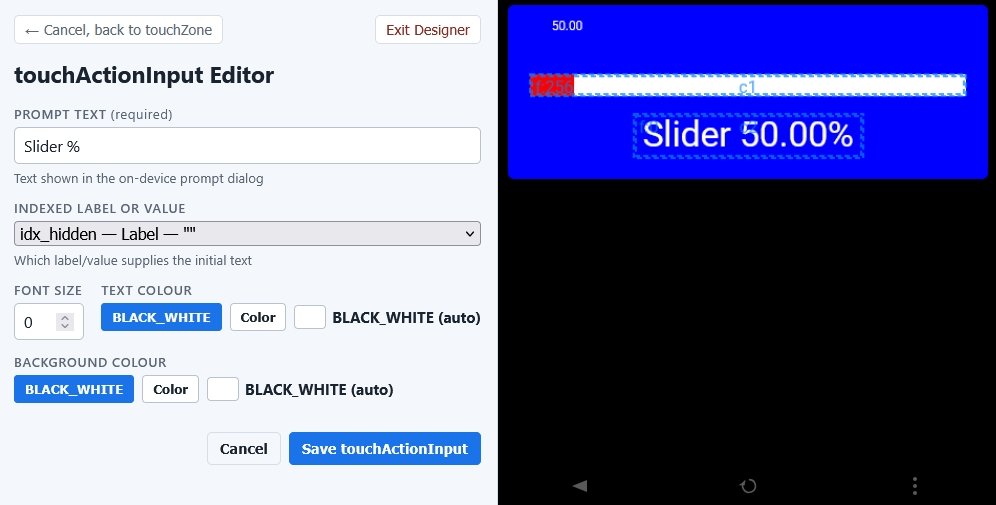
Only indexed labels and value dwg items are listed as the item to be used as the default text.
You can click on the preview to see touchActionInput triggered.
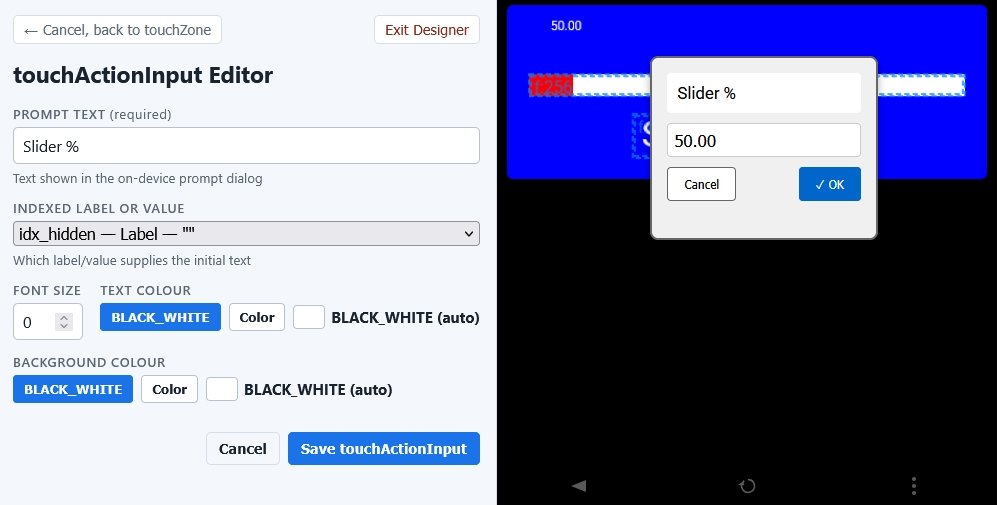
Click Save touchActionInput and then touchZone's Save Changes to save these edits.
Add a hide Item. You can click Show for visible items to make them flash.
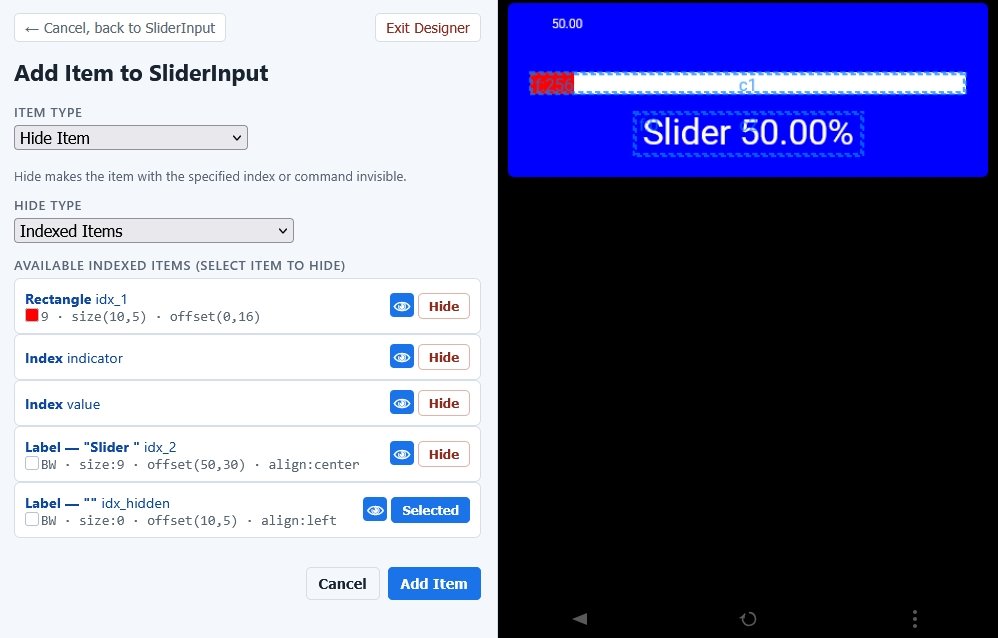
Click Hide for idx_hidden to hide the 50.00 label
that is used for the touchActionInput.
Click Add Item.
The preview now has the 50.00 label hidden,
Use Generate Code
to export Arduino code to SliderInput_serial.zip
The completed sketch with the supporting code is in SliderInput.zip.
Unzip SliderInput_serial.zip
to your Arduino sketch dir, open it in Arduino and save it as
SliderInput.
Copy the SliderControls.cpp / .h files from
the previous tutorial to the ../Arduino/SliderInput directory.
SliderControls needs to be edited to extend the new dwg class
Dwg_SliderInput.
The code also needs to be updated to handle the
revised methods
  virtual void sendIndexedItems();
  virtual bool Dwg_SliderInput_cmd_c1(int row, int col, uint8_t touchType, const byte* editedText);
  virtual bool Dwg_SliderInput_cmd_sliderValue(int row, int col, uint8_t touchType, const byte* editedText);
The Dwg_SliderInput_cmd_c1() has the same code the old
Dwg_BasicSlider_cmd_c1() method, so a rename it.
Dwg_SliderInput_cmd_sliderValue() is a new method to handle the touchZone touchActionInput and sendIndexedItems() need to have an extra line added to update the hidden label with the latest position of the slider.
A typical command set when the touchActionInput dialog box is OK
is
{A~c3`19`4`0~35.35}
where the last field is the text
the user entered. The pfodParser truncates the incoming msg at 255
chars. The Edited text is on the end of the incoming message and so
is limited to less than 255 chars. See the pfodSpecification.pdf
for more info on touchActionInput messages. The
touchActionInput dialog box does not do any validation. It is
up to your Arduino code to do that. In SliderInputControls.cpp, the
SafeString library is used to a) safely copy the first 15 chars of
the edited text and b) convert it to a float.
The code was completed using claude.ai and the SafeString library. The prompt was:-
  SliderInput contains the code for displaying a slider and letting the user mouse along
  it OR click on the Slider ..% label and enter a new slider value.
  The SliderControl.cpp/.h is from an earlier version.
  rename it to SliderInputControl and update it to sub-class Dwg_SliderInput
  Add a string variable to hold the user input, parse it for a float value, print and
  error message to Serial if it is not a valid float or outside range 0 - 100,
  if a valid float and within range, update the slider and the hidden label used by the
  touchActionInput
  Use the SafeString library, refer to C:\ai\aicode\DwgCode\SafeString\SafeString_AI_Guide.md
  for the library context
Check SliderInputControl.cpp (in SliderInput.zip) for the final code.
If the user enters an invalid slider setting, it is helpful to display an error message to them. Currently any error messages are only visible in the Raw Message View.
Open pfodWeb Web Designer and copy SliderInput to SliderInputErr and edit it to add an indexed ErrMsg label.
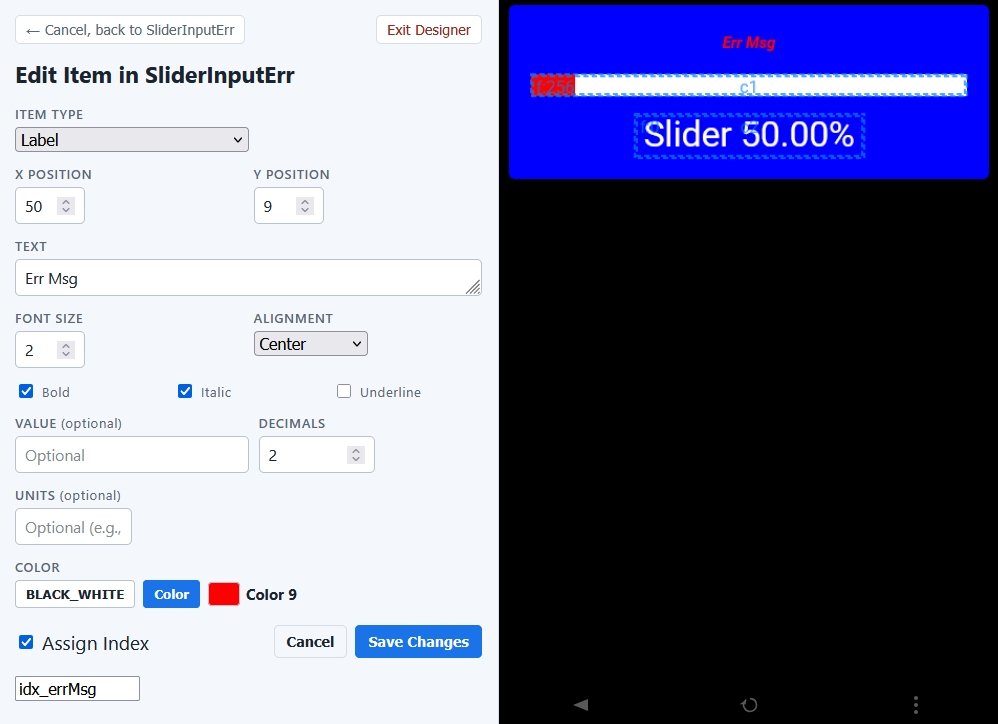
If there are no errors, the Arduino
Code in SliderControls will set a empty message which make the
message invisible.
Click Save Changes and move the error
msg label above the popZero so that is centered on the slider
A previous errror message won't be
cleared until the pfodDevice responds to a user's correction, so to
hide any existing error message while waiting for the response, add a
touchAction to both touchZones to clear
the error msg.
That is replace idx_errMsg with an label
empty of text, in both touchActions.
Go back to the Control Panel and use Arduino Export to generate the new code, SliderInputErr_serial.zip. Copy across the previous SliderInputControl.cpp / .h
Again Claude.ai was used to complete the code with the prompt:-
  SliderInputErr contains the code for displaying a slider and letting the user mouse along
  it OR click on the Slider ..% label and enter a new slider value.
  The SliderInputControl.cpp/.h is from an earlier version.
  rename it to SliderInputErrorControl and update it to sub-class Dwg_SliderInputErr
  Add a string variable to hold an error msg and if there is an error parsing the user's input
  update the Err Msg label, otherwise clear it.
  Use the SafeString library, refer to C:\ai\aicode\DwgCode\SafeString\SafeString_AI_Guide.md
  for the library context
The completed code is in SliderInputErr.zip
This page covered using a touchActionInput to allow the use to send text data to the pfodDevice (your microprocessor) . It showed how to add a hidden label to the drawing that does not display but which can be updated and provide the default value for the touchActionInput dialog box.
AndroidTM is a trademark of Google Inc. For use of the Arduino name see http://arduino.cc/en/Main/FAQ
The General Purpose Android/Arduino Control App.
pfodDevice™ and pfodApp™ are trade marks of Forward Computing and Control Pty. Ltd.

Contact Forward Computing and Control by
©Copyright 1996-2024 Forward Computing and Control Pty. Ltd.
ACN 003 669 994